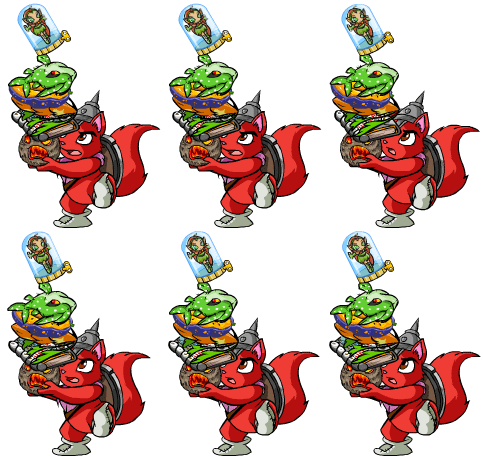
Of course, there are tons of ways to blend, and here is another way to blend. This blending technique is open to more programs (MS Paint won't work though...). First you need to open your graphics program, create a file (I like 350x200 for banners ;D) and choose the images you want to blend together. Normally, images that have similar backgrounds will blend better. I chose:

Paste the two images into the file and then make one of them overlap the other a lot. Here's mine so far......
Example
...And now we're ready for the blending! Choose your program's selection tool, then look at the tool properties. Change the feather to 40-60. I chose 55. Now click and drag the selection tool and make a skinny rectangle where the overlapping image's edge is (example). Let go, and then the selection should turn bigger than the rectangle you drew. Now keep pressing "delete" on your keyboard (not backspace!) until you're satisfied with your blend. Here's how mine turned out:

All I did was add a border and an overlay effect and ta da!
~Nicolette